September 5, 2016

How to Insert Chapter-Based Right-Aligned Equation Numbers In MS Word 2010

     If you write an article for a journal, a diploma project or a dissertation you may wonder how to insert automatically updated right-aligned equation numbers based on chapters. In other words, for example, math equations in chapter 1 should be referenced to as (1.1), (1.2), etc., and these captions should be on the right edge of a page. Microsoft geniuses somehow used not to think about a built-in method of numbering equations until Office 2016. Having searched the web, I found a cool table-based method provided by Dr.Franklin in this video. However, this video described only a basic numbering, which does not say how to include the chapter number. I’ll show you below how to easily expand this method into a chapter-based numbering.

Most steps are just per the video. First insert table with one raw and 2 columns, and adjust the width of the right column like this:


If you want formulas to be exactly centered on the page, you can optionally insert 3rd column on the left  with the same width as the right column. Type parenthesis in the right column and click inside them. Then click Insert--->Quick Parts --->Field. Scroll down to StyleRef.  You will get a menu like you see below.
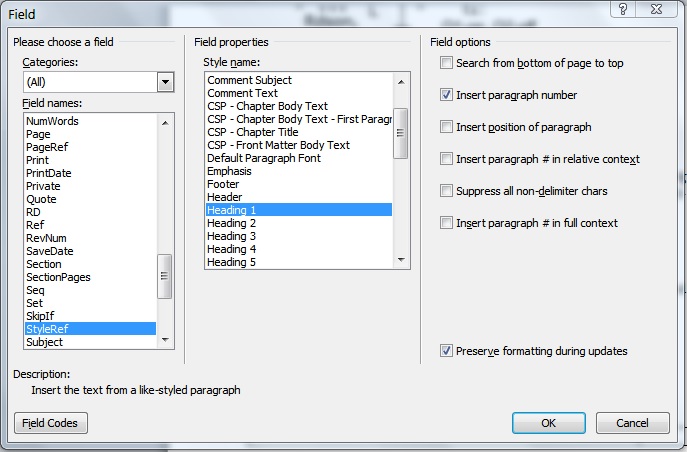


Check 'Insert paragraph number' in the Field options, and under Style name select the section which you want to be the base of the numbering. If, for example, your chapters are based on Heading 1, select it in Style name. When you hit OK, it will print the number of the current "Heading 1" chapter. Then type period (dot) and click again Insert--->Quick Parts --->Field. This time scroll down to Seq (which is sequence field). Add a name to this sequence, for example Seq eq.


When you hit OK it will print the number 1. In our example, if you do it in the Chapter 1, the result in right column will look like (1.1). Every time you repeat this procedure the numbers will automatically update sequentially. Optionally, you can click in the main column and then click Insert--->Equation. This will place an equation placeholder there. Finally, select the entire table and get rid of borders.

To simplify the process so that you won’t have to repeat it manually every time you insert a math formula,  you can save all this as an auto text. Select entire table and click Quick Parts--->Auto text--->Save  the selection in auto text gallery. When you will need to place the next formula, you will just go Quick Parts--->Auto text and select your saved auto text. This method will likely work in Word 2013 as well, although I did not try it.

By the way, Equation Editor is an optional component of MS Word. You need to select it when you first install Word.

December 6, 2015

Drone Package Deliveries

I like an idea of getting a package by a dron. Google recently has filed a patent application on the method of dron delivery. Basically, you will need to print a barcode and display it in a “landing pad”. The article claims the delivery may start in 2017.

January 24, 2015

2015 Home Generator Review and Buying Guide

Needless to say, the winter is here. During the past decade the number of power outages including weather related ones kept rising across the entire country. In 2014 alone there were more than 200 power disturbances in U.S. affecting over 16 million people. Since most electrical lines in U.S. still use overhead wires, and because of aging infrastructure of our power grid, this trend will likely continue. A lengthy power interruption is more than spoiled food or just an annoyance. It is a potential life-threatening situation. My online guide to home generators provides the basics of backup power. For complete information with step-by-step instructions on selection, sizing and connecting standby and portable models see my new generator review and buying guide. It will save you hours of research and potentially save you money too.